Overview
This guide will walk you through the process of setting up an automatic backup for a folder to Koofr using rclone on a Windows machine. The steps are:
- Set up Koofr and rclone
- Create a CMD script to sync your local folders with Koofr
- Schedule the script using the Windows Task Scheduler
Setting Up Rclone and Koofr
First, install rclone if you haven't already. On recent Windows versions, run the following command in PowerShell:
winget install Rclone.RcloneFor older versions, you can install it via Chocolatey or download the installer directly.
Adding a Regular Koofr Storage
To securely connect to Koofr without sharing your password, generate a new app password in the Koofr Password Portal.
Then, run rclone config to configure a new remote:
- Select the option "Koofr, Digi Storage, and other Koofr-compatible storage providers."
- Provide your Koofr credentials to complete the setup.
If you run the following command:
rclone tree <remote-name>:/You should see the file tree of your Koofr storage.
Adding an Encrypted Vault
To set up an encrypted vault, open your vault at Koofr Vault, and access the configuration settings as shown below:
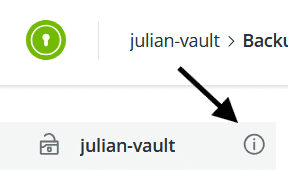
Next, go to Backup the safebox config and copy the provided rclone configuration.
Open the file $env:APPDATA\rclone\rclone.conf in your text editor and paste the configuration there. It should look something like this:
[koofr]
type = koofr
provider = koofr
user = <snip>
password = <snip>

[julian-vault]
type = crypt
remote = koofr:/julian-vault
password = <snip>
password2 = <snip>
Save the file, exit the editor, and run rclone config. You should now see the new remote. Running:
rclone tree <vault-name>:/will show the contents of your vault.
Creating the Backup Script
Choose a location on your machine to store your script (ideally an empty folder), and create a .bat file.
You can sync a single folder to Koofr or Koofr Vault using the rclone sync command. Here's a sample command:
rclone sync folderPath koofr:/path/to/folder ^
        --log-level INFO ^
        --log-file=C:/path/to/logfile ^
        --exclude "*.o" ^
        --exclude ".git/**" ^
        --exclude "out/**/*.class" ^
        --delete-excluded ^
        --progress
For detailed usage, refer to the rclone documentation.
To sync multiple folders, use the following template:
@echo off
@echo Rclone Backup to Koofr
@echo.

rclone sync "D:\folder-1" koofr:/julian/folder-1 ^
        --log-level INFO ^
        --log-file=C:\koofr-sync\log.txt ^
        --exclude "*.o" ^
        --exclude "*.bin" ^
        --delete-excluded ^
        --progress

for %%x in (folder-2 folder-3) do (
    rclone sync "D:\%%x" koofr:/julian/%%x ^
        --log-level INFO ^
        --log-file=C:\koofr-sync\log.txt ^
        --delete-excluded ^
        --progress
)

for %%x in (vault-folder1 vault-folder2 vault-folder3) do (
    rclone sync "D:\%%x" julian-vault:/%%x ^
        --log-level INFO ^
        --log-file=C:\koofr-sync\log.txt ^
        --delete-excluded ^
        --progress
)
Test the script by running it manually in cmd to ensure it works as expected.
Scheduling the Script
- Open the Windows Task Scheduler by running
taskschd.msc. - Select
Action>Create Basic Task. - Configure the task to run at logon and set the script as the program to be executed.
- After creating the task, go back to the Task Scheduler and edit the newly created task.
- Fine-tune the task settings to suit your needs, such as:
- Sync only when connected to the power grid
- Sync only when a network connection is available
- Delay activation for a few minutes after login (found under the
Triggertab)
Once set up, the backup will run automatically when you log in, as long as the configured conditions are met. Check the sync log for any new entries.